How to Scan a Document on iPhone Using the Notes App
The Notes app is one of the easiest ways to scan paperwork on an iPhone.
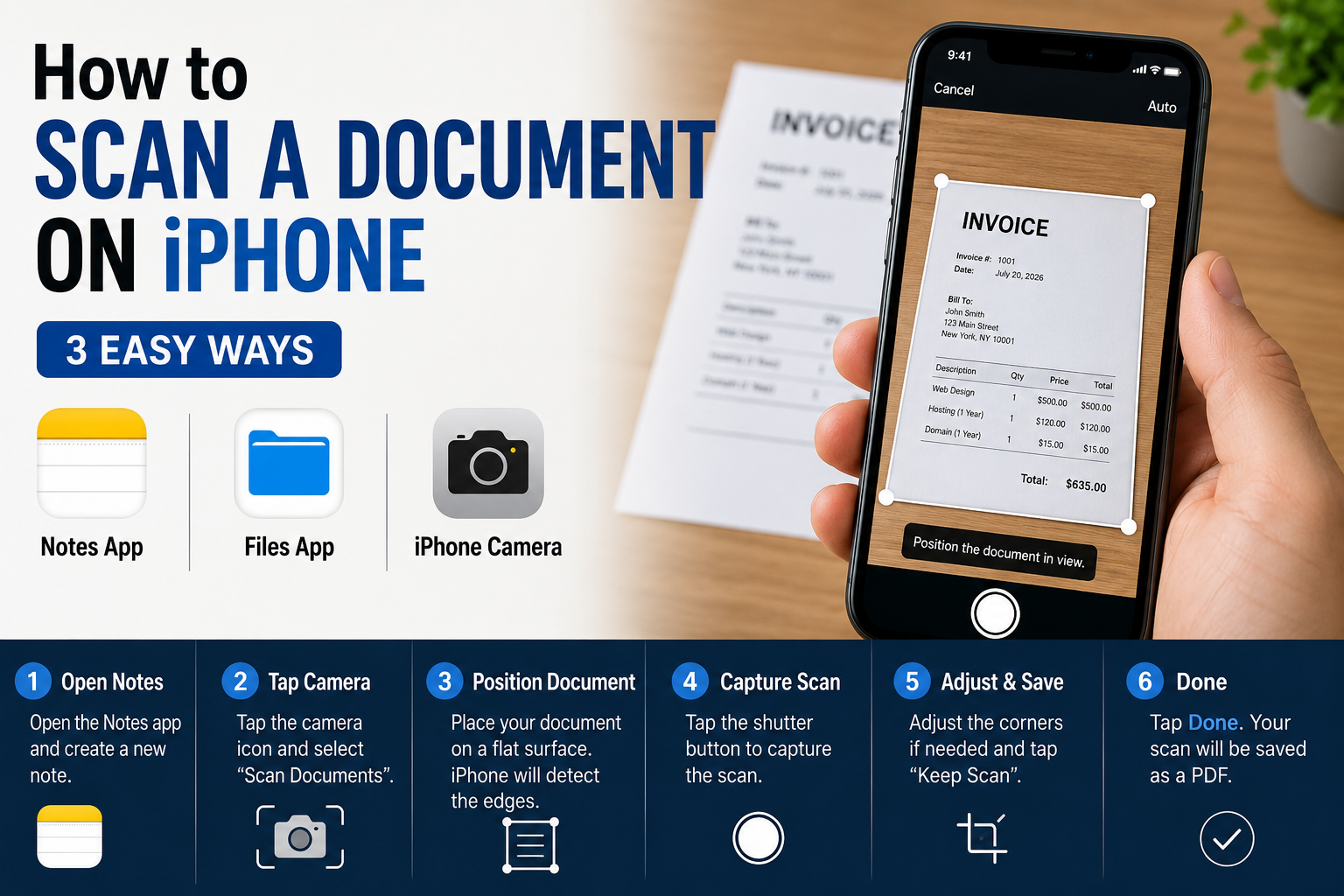
Step 1: Open Notes
Open the Notes app on your iPhone.
Create a new note or open an existing note where you want to save the scanned document.
Step 2: Open the Camera Menu
Tap the Attachment or camera-related button in the Notes toolbar.
Select Scan Documents.
Step 3: Position Your Document
Place the document on a flat, well-lit surface.
Hold your iPhone above the paper. Your iPhone can automatically detect the edges of the document.
When the document is detected, the phone may automatically capture it.
You can also manually capture the document by pressing the shutter button.
Step 4: Adjust the Scan
After capturing the page, you can adjust the corners if necessary.
If the scan looks correct, tap Keep Scan.
If you need another attempt, choose Retake.
Step 5: Scan Additional Pages
If your document has multiple pages, continue scanning them.
The pages can be saved together as one document.
Step 6: Save the Document
When you’re finished, tap Done.
Your scanned document will be saved inside the note.
How to Scan a Document on iPhone Using the Files App
You can also scan paperwork directly into the Files app.
This is useful when you want the document to be stored with your other files rather than inside a note.
Step 1: Open Files
Open the Files app.
Navigate to the folder where you want to save your document.
Step 2: Open the More Menu
Tap the More button in the folder.
Look for the option to Scan Documents.
Step 3: Scan the Paper
Position the document inside the camera view.
Your iPhone can automatically detect the document and capture it.
You can manually capture it if automatic scanning doesn’t work.
Step 4: Save the Scan
Review the pages and tap Save when finished.
The scanned document will be saved as a PDF in your selected location.
How to Scan Multiple Pages Into One PDF on iPhone
If you have a multi-page document, you don’t need to create a separate file for every page.
Start scanning through Notes or Files and capture each page during the same scanning session.
After you’ve captured all the pages, save the scan.
Your pages can be combined into a single PDF document, making it easier to email, upload, or store.
How to Scan a Document and Email It From iPhone
After scanning your document, you can share it directly from your iPhone.
Open the scanned document and use the Share option.
Depending on the app and file location, you can send it through:
- Messages
- AirDrop
- Other compatible apps
If the recipient needs a PDF, make sure you’re sharing the scanned document as a PDF rather than sending a photo of the paper.
How to Sign a Scanned Document on iPhone
You can also add a signature to many PDF documents without printing them.
Open the scanned PDF and use the available Markup tools.
Look for the signature option, create or select your signature, and place it where required.
You can then save or share the signed document.
For legal, financial, employment, or government documents, check whether the recipient accepts an electronically signed copy before submitting it.
How to Get a Clearer Scan on iPhone
If your scan looks blurry, dark, or distorted, try these tips:
Use Good Lighting
Bright, even lighting makes text easier to capture.
Avoid strong shadows across the paper.
Place the Paper on a Flat Surface
A flat document is easier for the camera to detect and crop correctly.
Keep Your iPhone Steady
Hold your phone directly above the document and avoid moving while the scan is captured.
Clean Your Camera Lens
A dirty camera lens can make text appear blurry.
Avoid Glare
If the paper is glossy, change the angle of your iPhone or move the light source to reduce reflections.
Can You Scan a Document Without a Scanner?
Yes. For many everyday documents, an iPhone can replace a traditional scanner.
You can scan paperwork, receipts, forms, invoices, notes, and other documents using built-in iPhone features.
For extremely high-volume scanning or specialized documents, a dedicated scanner may still be more convenient.
Can You Scan a Document and Save It as a PDF?
Yes. iPhone’s document-scanning features can save scanned paperwork as PDF documents.
This makes it easy to keep digital copies of important paperwork and send them electronically.
Why Is My iPhone Not Detecting the Document?
If automatic document detection isn’t working, try the following:
- Put the document on a contrasting, flat surface.
- Improve the lighting.
- Move the iPhone slightly farther away.
- Hold the phone steady.
- Make sure the camera lens is clean.
- Try manually capturing the document.
Automatic detection can vary depending on lighting, paper color, background, and camera angle.
iPhone Document Scanning vs. Taking a Photo
A regular photo captures the document as an image.
Document scanning is designed to create a cleaner digital copy by detecting the paper’s boundaries and correcting the perspective.
For paperwork that you need to email, print, upload, or archive, a scanned PDF is often more convenient than a standard photograph.
What is the easiest way to scan a document on iPhone?
The Notes app is one of the simplest built-in options. Open a note, choose the document scanning option, capture the pages, and save the scan.
Can I scan a document on iPhone without an app?
Yes. You can use Apple’s built-in Notes or Files apps, so you don’t necessarily need to install a third-party scanning application.
Can an iPhone scan multiple pages?
Yes. You can scan multiple pages during the same scanning session and save them together as one document.
Can I scan a document directly to PDF on iPhone?
Yes. Apple’s document-scanning features can create PDF documents from scanned pages.
Can I sign a scanned document on iPhone?
Yes. Many PDFs can be marked up and signed directly on an iPhone using Apple’s built-in Markup tools.
Learning how to scan a document on iPhone can save time and eliminate the need for a traditional scanner for many everyday tasks.
For a quick scan, start with the Notes app. If you want the PDF stored alongside your other files, the Files app is another convenient option.
Once you’ve scanned the document, you can save it, share it, organize it, or add a signature directly from your iPhone.
Last Updated: July 2026
scan document on iPhone
how to scan documents on iPhone
scan PDF on iPhone
iPhone document scanner
scan a document to PDF on iPhone
how to scan multiple pages on iPhone
About The Author