If you accidentally deleted your precious memories and want to know
How to Recover Deleted Photos on iPhone
you have come to the right place! Losing vacation snapshots, family photos, or important screenshots can be panic-inducing. Fortunately, Apple’s iOS includes several built-in safeguards and cloud backups designed to help you retrieve lost images quickly.
Depending on when you deleted the photos and your iCloud backup settings, you can often recover your pictures in just a few taps without needing any expensive third-party software.
In this comprehensive, step-by-step guide, we will walk you through 5 proven methods on How to Recover Deleted Photos on iPhone, ranging from simple trash recovery to iCloud restoration.
Quick Summary: Which Recovery Method Do You Need?
Before diving into the steps, review this quick summary to find the best approach for your specific situation:
| Deletion Timeline | Recovery Method | Success Rate |
|---|---|---|
| Less than 30 Days ago | Apple Photos “Recently Deleted” Album | 100% (Instant) |
| More than 30 Days ago | iCloud Web Backup (iCloud.com) | High (If synced) |
| Permanently Lost / Missing | Previous iTunes / Finder Backup | Moderate (Restores whole backup) |
Method 1: Recover from the “Recently Deleted” Album (Most Common)
When you delete a photo on your iPhone, Apple does not erase it permanently right away. Instead, the image is moved to a hidden trash folder for 30 days, giving you plenty of time to change your mind.
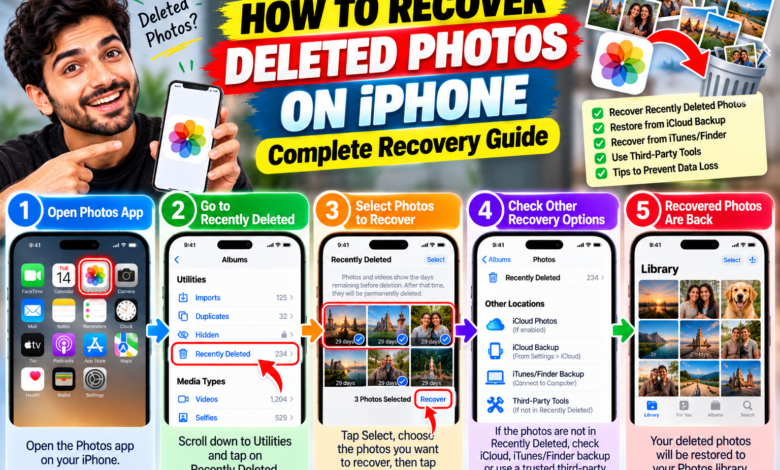
- Open the official Photos app on your iPhone.
- Tap on the Albums tab at the bottom of the screen.
- Scroll all the way down to the Utilities section and tap on Recently Deleted.
- Unlock the folder using Face ID, Touch ID, or your passcode.
- Tap Select in the top-right corner, choose all the photos you want to bring back, and tap Recover at the bottom right. Your pictures will instantly return to your main library!
Method 2: Restore from iCloud.com (If Synced to Cloud)
If you have iCloud Photos enabled on your device, photos deleted from your iPhone might still exist in the cloud storage system.
- Open Safari or any web browser on your phone or computer and go to iCloud.com.
- Sign in securely using your Apple ID and password.
- Click on the Photos app icon inside the iCloud dashboard.
- Look at the sidebar menu and select the Recently Deleted folder.
- Select the missing photos and click Recover to push them back to all your synced Apple devices.
Method 3: Check Shared Albums and Hidden Folders
Sometimes photos aren’t actually deleted—they are simply hidden from your main timeline or stored in shared family folders.
- Check the Hidden Album: Open Photos > Albums, scroll down to Utilities, and tap Hidden. Unlock it to ensure your pictures weren’t placed there by accident.
- Check Shared Albums: If you collaborate on family albums, check your Shared tab to see if the images were uploaded there.
Method 4: Restore via a Previous iCloud Backup
If your photos were permanently deleted from the Recently Deleted folder and never synced to iCloud Photos, you might be able to recover them by restoring a previous iCloud device backup.
⚠️ Warning Before Restoring Backups:
Restoring an older iPhone backup will revert your device settings, messages, and app data to the exact date that backup was created. Any new photos or texts received after that date will be lost. To check your last backup date, go to Settings > Your Name > iCloud > iCloud Backup.
Method 5: Check Third-Party Cloud Apps
Many iPhone users forget that they have automatic background backups enabled on other popular cloud platforms:
- Google Photos: Open the Google Photos app and check your Google Trash folder.
- Microsoft OneDrive or Dropbox: Check the trash or upload history inside your OneDrive app if you had camera upload enabled.
- Recently Deleted Messages: Sometimes photos sent or received via text message can be recovered from the Messages app trash bin.
FAQs
Can you recover permanently deleted photos without a backup?
Once photos are cleared from your iPhone’s “Recently Deleted” folder (after 30 days) and have no backup on iCloud or a computer, recovery becomes extremely difficult. Be wary of third-party desktop software claiming a 100% success rate, as many are scams.
Do third-party recovery apps actually work?
Most commercial iPhone data recovery tools require a computer connection and deep system scans. However, their success rate is low if the storage sectors have already been overwritten by new iOS system files.
Now that you know How to Recover Deleted Photos on iPhone, you can quickly restore your missing memories using these safe methods! Which method helped you retrieve your photos? Let us know in the comments below!
Read More..
How to Fix iPhone Battery Draining Fast: 12 Ways (2026)
About The Author