If you are looking for an easy, step-by-step guide on
How to Clear Cache on iPhone
you have come to the right place! Over time, saved web data, temporary browser files, and accumulated app cache can take up gigabytes of valuable storage on your device. This often leads to sluggish performance, frozen apps, and low storage warnings.
Clearing your cache on iOS is a safe and effective way to instantly free up internal storage and boost your iPhone’s overall speed without deleting your important photos or personal messages.
In this guide, we will show you How to Clear Cache on iPhone across Safari, third-party apps, and system storage.
Quick Summary: Cache Clearing Methods
Here is a quick overview of what clearing different types of cache does on your Apple device:
| Cache Type | Storage Recovered | Impact on Device |
|---|---|---|
| Safari Browser Cache | 500 MB to 3 GB | Removes temporary website files and speeds up page loading. |
| App Cache (Offloading) | 1 GB to 10+ GB | Frees app storage space while preserving your app data and documents. |
| System Data / Other Storage | Varies | Clears temporary system logs and streaming buffer files. |
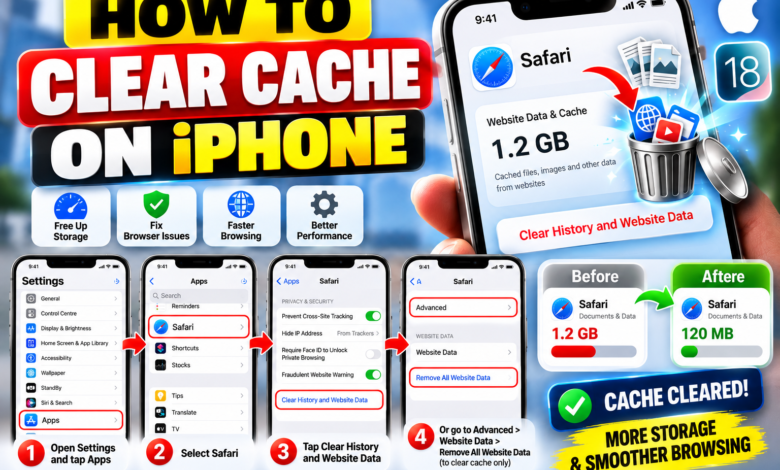
Step 1: How to Clear Safari Cache on iPhone
The Safari web browser accumulates the largest amount of temporary files. Clearing Safari history and website data takes just a few seconds:
- Open the Settings app on your iPhone.
- Scroll down and tap on Safari.
- Scroll down to the bottom and select Clear History and Website Data.
- Choose your preferred timeframe (e.g., All History) and tap the red Clear History button to confirm.
Step 2: Clear App Cache Using “Offload App”
Unlike Android devices, iOS does not feature a universal “Clear Cache” button for all apps. However, Apple’s built-in Offload App feature frees up storage without deleting your personal save files or login details:
- Go to Settings > General > iPhone Storage.
- Scroll through the list of apps and tap on a storage-heavy app (like TikTok, Instagram, or games like Roblox).
- Tap Offload App to delete the app’s installation files while keeping its documents and data intact.
- Tap Reinstall App to download a fresh, clean version of the application!
Step 3: Clear Cache Inside Specific Apps
Popular social media apps and web browsers (such as Google Chrome, TikTok, and Snapchat) feature dedicated cache management options within their own setting menus:
App-Specific Cache Tips:
- TikTok: Go to Profile > Settings and Privacy > Free up space > Clear Cache.
- Snapchat: Go to Settings > Account Actions > Clear Cache.
- Google Chrome: Go to Chrome Settings > Privacy and Security > Clear Browsing Data.
Frequently Asked Questions
Does clearing cache delete photos or personal contacts?
No! Clearing browser and app cache only deletes temporary files, saved website cookies, and script caches. Your personal photos, videos, contacts, and messages remain completely safe.
How often should you clear cache on your iPhone?
It is recommended to clear your browser and app cache once every 1 to 2 months, or whenever your device starts running out of internal storage space.
Now that you master How to Clear Cache on iPhone, your phone will run faster and smoother with plenty of freed-up storage space. How much storage did you save today? Let us know in the comments below!
About The Author