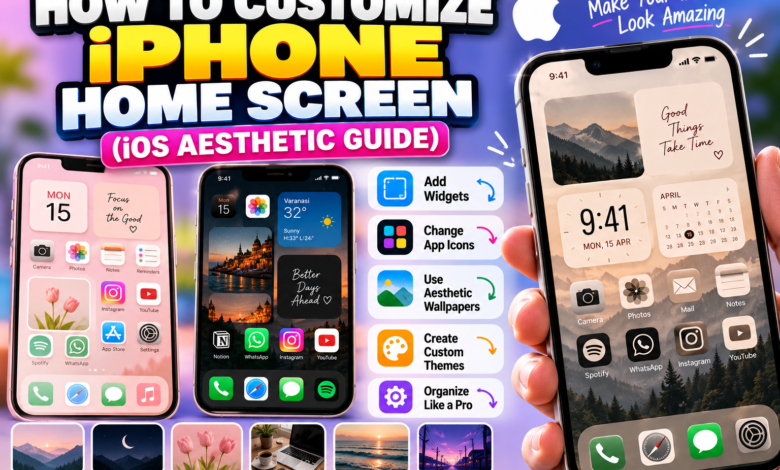
If you are looking for an easy, step-by-step guide on
How to Customize iPhone Home Screen
to create a beautiful, aesthetic layout, you have come to the right place! Apple’s iOS gives you incredible freedom to redesign your home screen using custom widgets, color-matched app icons, and personalized wallpapers.
Whether you want a pastel aesthetic, a dark minimalist vibe, or an organized setup for productivity, transforming your iPhone screen takes only a few minutes once you know the right tools to use.
In this guide, we will show you How to Customize iPhone Home Screen using built-in iOS features and popular free customization apps.
Best Tools for Customizing Your iPhone
Here is a quick overview of the essential apps and tools you will need before starting:
| Tool Name | Type | What It Does |
|---|---|---|
| Apple Shortcuts App | Pre-installed iOS App | Replaces default app icons with custom images and photos. |
| Widgetsmith / Color Widgets | Free App Store Apps | Adds custom photo frames, clocks, calendars, and quotes. |
| Pinterest / Canva | Graphics & Search | Finds aesthetic wallpapers, PNG icons, and color palettes. |
Step 1: Choose an Aesthetic Theme & Wallpaper
Every great iPhone setup starts with a solid color palette or theme. Decide on a vibe before downloading icons—such as Beige Minimalist, Neon Cyberpunk, Pastel Pink, or Dark Mode Aesthetic.
- Search Pinterest for “Aesthetic iPhone Wallpaper” or “iOS Color Palette ideas”.
- Save a high-resolution background image to your iPhone Photos library.
- Set it as your primary home screen background in Settings > Wallpaper.
Step 2: Add Custom Widgets to Your Home Screen
Widgets break up boring grids of app icons and add instant style and function to your screen:
- Touch and hold any empty area on your home screen until the apps start to jiggle.
- Tap the “+” (Plus) button in the top-left corner.
- Select apps like Widgetsmith, Calendar, or Weather to add small, medium, or large widgets.
- Customize the font, background color, and photos inside the Widgetsmith app to match your wallpaper!
Step 3: Change App Icons Using Shortcuts
To replace stock app icons (like Safari, Instagram, or Messages) with custom aesthetic images:
- Open the Shortcuts app on your iPhone and tap “+” to create a new shortcut.
- Tap Add Action, search for “Open App”, and choose the app you want to customize.
- Tap the share icon or drop-down menu at the top, then select “Add to Home Screen”.
- Tap the icon image, select Choose Photo, pick your custom icon image, and name the app!
Pro Tips for a Clean iOS Setup
1. Hide Original Apps: Hold down original app icons, tap Remove App, and choose “Remove from Home Screen” so they remain safely stored in your App Library without cluttering your main screen.
2. Create Blank Spaces: Use transparent widget apps like Yidget to create invisible spacers on your screen for a floating app look.
Frequently Asked Questions
Does customizing your iPhone home screen drain battery life?
Standard custom app icons do not drain battery. However, having multiple active widgets that refresh continuously (like live location weather or news feeds) can slightly increase battery consumption.
Can you remove app icon shortcuts easily?
Yes. Custom shortcut icons act like regular app shortcuts. Touch and hold any custom icon and select Delete Bookmark to remove it without deleting the actual app.
Now that you know How to Customize iPhone Home Screen, you can give your phone a fresh new look anytime you want! What color theme are you choosing for your setup? Let us know in the comments below!
About The Author