Moving photos from an iPhone to a Windows PC doesn’t have to be complicated. Whether you want to back up your pictures, free up iPhone storage, or edit photos on your computer, there are several simple ways to transfer them.
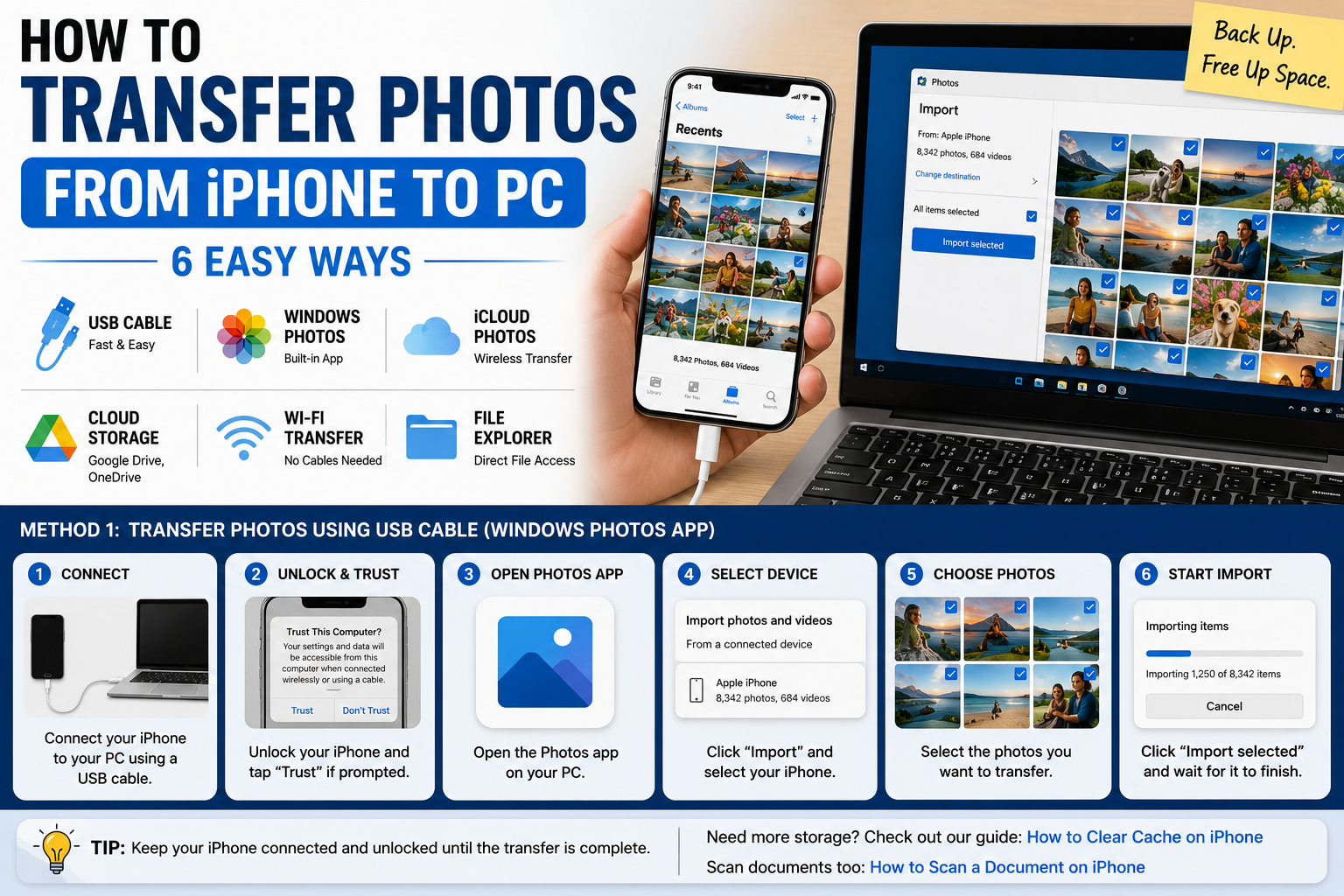
You can transfer photos from iPhone to PC using a USB cable, the Windows Photos app, iCloud Photos, or other cloud-based methods.
In this guide, we’ll show you how to transfer photos from iPhone to PC step by step and explain which method is best for different situations.
1. How to Transfer Photos from iPhone to PC With a USB Cable
Using a USB cable is usually the simplest method if you want to move photos directly from your iPhone to a Windows PC.
Step 1: Connect Your iPhone to Your PC
Connect your iPhone to your Windows computer using a compatible USB cable.
If your iPhone displays a message asking whether you trust the computer, unlock your iPhone and follow the on-screen instructions.
Step 2: Unlock Your iPhone
Keep your iPhone unlocked while Windows detects the device.
If the phone isn’t recognized, disconnect it and reconnect it while the iPhone is unlocked.
Step 3: Open Windows Photos
Open the Photos app on your Windows PC.
Look for the option to import photos from a connected device.
Step 4: Select Your iPhone
Choose your iPhone from the available devices.
Windows may take a moment to scan the phone and identify available photos and videos.
Step 5: Choose Photos
Select the photos you want to transfer.
Depending on your Windows version, you may be able to choose individual photos, groups of photos, or all available items.
Step 6: Start the Transfer
Choose where you want the photos saved and start the import.
Keep the iPhone connected until the transfer is complete.
2. How to Transfer Photos from iPhone to PC Using File Explorer
You can also access photos from an iPhone through Windows File Explorer after connecting the device.
Step 1: Connect Your iPhone
Connect your iPhone to your PC with a USB cable.
Unlock your iPhone and approve the computer if prompted.
Step 2: Open File Explorer
On Windows, open File Explorer.
Your iPhone may appear under This PC or connected devices.
Step 3: Open Your iPhone
Select the iPhone and navigate through the available storage folders until you reach the folder containing your photos.
Step 4: Select Your Photos
Choose the photos you want to copy.
You can select individual images or multiple files at once.
Step 5: Copy the Photos
Right-click the selected files and choose Copy, or use the appropriate keyboard shortcut.
Navigate to a folder on your PC and choose Paste.
The photos will then be copied to your computer.
Why Use File Explorer?
File Explorer is useful when you want more direct control over where your photos are stored.
However, the exact folders and behavior can vary depending on your iPhone settings, Windows version, and photo format.
3. How to Transfer Photos from iPhone to PC Using iCloud
If you don’t want to connect your iPhone with a cable, iCloud Photos can be a convenient alternative.
This method is particularly useful when your iPhone and PC are connected to the internet.
Step 1: Make Sure iCloud Photos Is Enabled
On your iPhone, open your Apple Account settings and check your iCloud Photos settings.
Make sure your photos are syncing with iCloud.
Step 2: Access iCloud on Your PC
On your Windows PC, use Apple’s official iCloud software or access iCloud through a supported browser.
Sign in using the same Apple Account associated with your iPhone.
Step 3: Open Your Photos
Open your iCloud Photos library.
Depending on the method you use, you can view or download photos stored in iCloud.
Step 4: Download Photos
Select the photos you want on your computer and download them.
The download time depends on the number and size of the files and your internet connection.
4. How to Transfer Photos from iPhone to PC Without a Cable
If you don’t have a USB cable available, you still have options.
You can use:
- iCloud Photos
- Cloud storage services
- Web-based photo transfer tools
- Other wireless transfer methods supported by your devices
For a large photo library, a wired connection may be faster and more reliable than transferring everything wirelessly.
For a small number of photos, wireless methods can be more convenient.
5. How to Transfer Photos from iPhone to PC Using Cloud Storage
Another option is to upload photos from your iPhone to a cloud-storage service and then download them to your PC.
The general process is:
- Install or open your preferred cloud-storage app on your iPhone.
- Upload the photos you want to transfer.
- Open the same service on your PC.
- Sign in to the same account.
- Select the photos.
- Download them to your computer.
This method is convenient if you’re transferring photos between devices in different locations.
However, uploading and downloading a large photo library can use significant internet bandwidth.
6. How to Transfer a Large Number of Photos from iPhone to PC
If you’re moving hundreds or thousands of photos, using a USB connection is often the most practical approach.
Before starting:
- Make sure your PC has enough free storage.
- Connect the iPhone directly to the PC when possible.
- Keep the iPhone unlocked.
- Avoid disconnecting the cable during the transfer.
- Transfer photos in smaller batches if Windows struggles with a very large selection.
If your main reason for transferring photos is to free up iPhone storage, don’t delete the originals until you’ve confirmed that the transferred copies are safely stored on your PC or backed up elsewhere.
What If Windows Doesn’t Recognize Your iPhone?
Sometimes a Windows PC may not immediately recognize an iPhone.
Try these steps:
Check the Cable
Make sure the cable is properly connected.
If possible, try another compatible cable or USB port.
Unlock Your iPhone
Keep your iPhone unlocked while connecting it to your computer.
Check the Trust Prompt
If your iPhone asks whether you trust the computer, follow the prompt and authenticate as required.
Reconnect the iPhone
Disconnect the cable, wait a moment, and connect it again.
Restart Both Devices
Restarting the iPhone and PC can resolve temporary connection problems.
Check for Updates
Make sure Windows and your iPhone are reasonably up to date.
Why Can’t I See All My iPhone Photos on My PC?
If some photos are missing, several things could be responsible.
Your iPhone may be using iCloud Photos with storage optimization, meaning some original files may not be stored locally on the device.
In that situation, not every original photo may be immediately available for direct USB transfer.
Check your iCloud Photos settings and make sure the originals you want to transfer are available.
Also remember that photos and videos can use different formats depending on your iPhone’s camera and settings.
How to Transfer HEIC Photos From iPhone to PC
iPhones can capture photos in HEIF/HEIC format, which can save storage compared with some traditional image formats.
However, compatibility can vary between Windows applications.
If a HEIC photo doesn’t open correctly on your PC, you may need compatible software or you can configure your iPhone’s camera settings to use a more broadly compatible format for future photos.
If you regularly work with image files, keeping the original format can preserve the original file characteristics, while converting copies can make sharing easier.
How to Transfer Photos From iPhone to PC and Free Up Storage
If your goal is to reclaim iPhone storage, transferring photos is only the first step.
After copying your photos:
- Open several transferred photos on your PC.
- Check that important videos and images are present.
- Confirm that the files are stored in the intended folder.
- Make a backup if the photos are important.
- Only then consider removing copies from your iPhone.
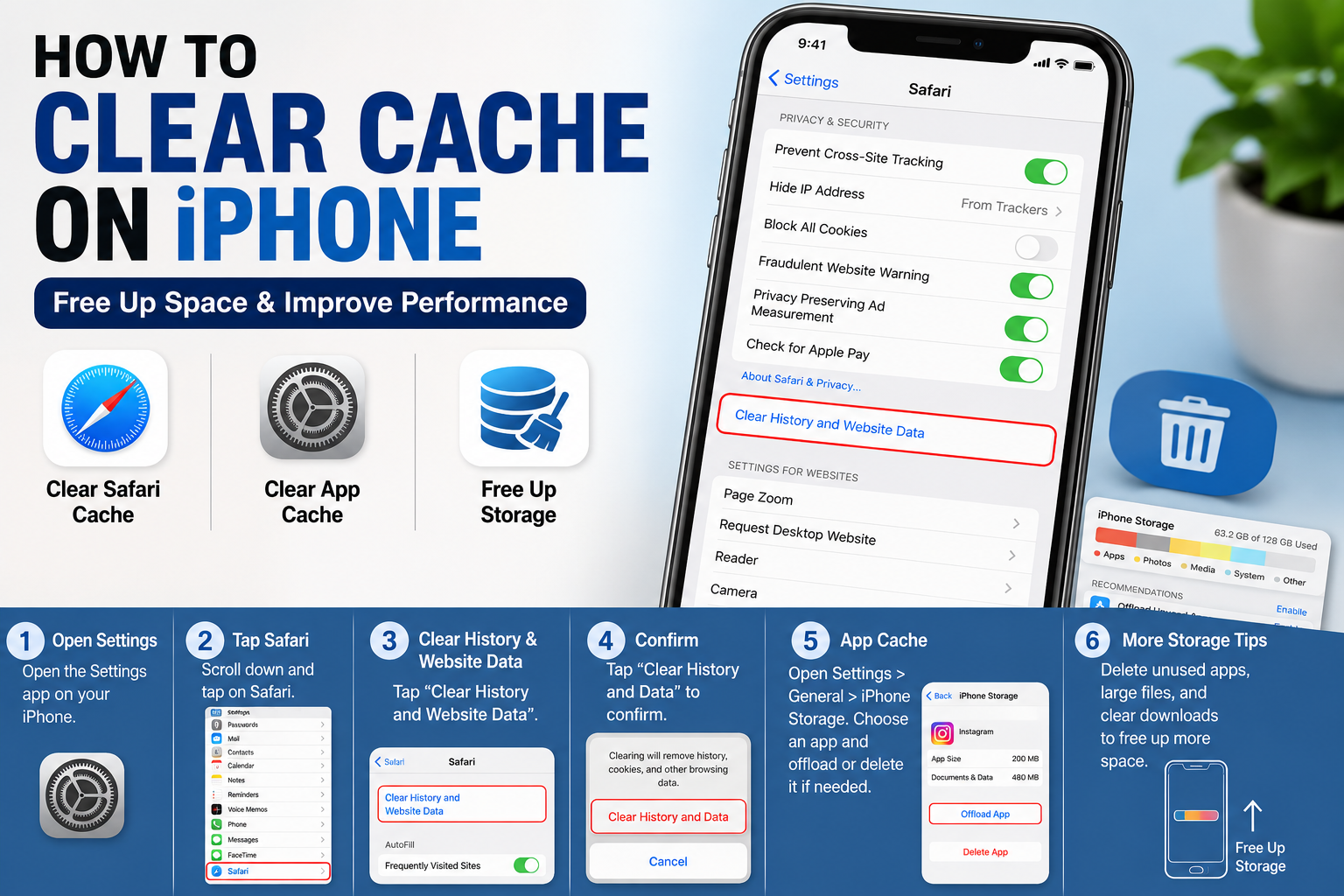
If you’re still running low on storage afterward, check our guide on How to Clear Cache on iPhone for additional ways to manage temporary data and storage.
Replace the example URL above with your actual published article URL.
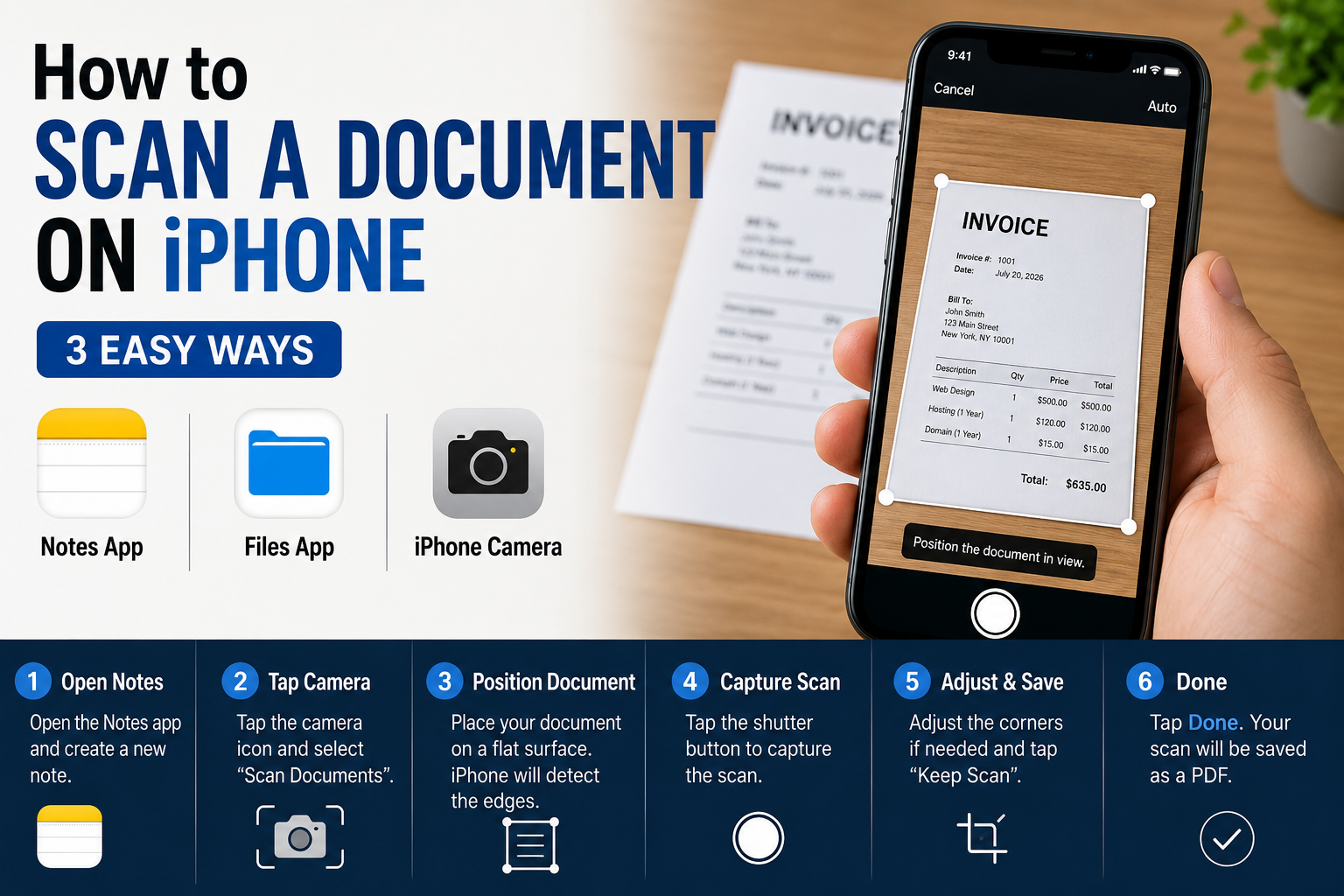
How to Scan Documents on iPhone Before Transferring Them
Your iPhone can also be useful for turning paperwork into digital files.
If you need to transfer scanned forms, receipts, invoices, or documents to your PC, you can first scan them on your iPhone and then move the resulting files to your computer.
For step-by-step instructions, see our guide:
How to Scan a Document on iPhone
Again, replace the example URL with the actual URL of your published article.
Which Method Is Best for Transferring Photos From iPhone to PC?
The best method depends on what you’re trying to do.
| Method | Best For | Internet Required? |
|---|---|---|
| USB + Windows Photos | Large photo transfers | No |
| File Explorer | Direct file copying | No |
| iCloud Photos | Wireless syncing | Yes |
| Cloud Storage | Sharing between devices | Yes |
| Wireless Transfer | Small batches | Usually |
For a large collection, USB transfer is usually the most straightforward option.
For occasional wireless transfers, iCloud or cloud storage can be more convenient.
Frequently Asked Questions
How do I transfer photos from iPhone to PC?
Connect your iPhone to your Windows PC with a compatible USB cable, unlock the iPhone, approve the computer if prompted, and use Windows Photos or File Explorer to copy your photos.
Can I transfer photos from iPhone to PC without iTunes?
Yes. You can transfer photos using a USB connection and Windows’ built-in tools, or use iCloud and other cloud-based methods.
How do I transfer photos from iPhone to PC without a cable?
You can use iCloud Photos or another compatible cloud-storage service. Upload the photos from your iPhone and download them on your PC.
Why won’t my PC recognize my iPhone?
Check that the iPhone is unlocked, the cable is properly connected, and any trust prompt has been approved. Trying another cable or USB port and restarting both devices can also help.
Where are iPhone photos stored on a Windows PC?
When you import photos, Windows lets you choose where to save them. If you copy files manually, you can select your preferred folder.
Why can’t I open iPhone photos on my PC?
Some iPhone photos may use HEIC/HEIF formats. Windows compatibility can depend on the version and software installed on your PC.
Will transferring photos delete them from my iPhone?
No. Copying or importing photos to your PC normally creates another copy. Your original photos remain on the iPhone unless you intentionally delete them.
What’s the fastest way to transfer lots of photos from iPhone to PC?
For a large photo library, a direct USB connection is generally a practical option because it doesn’t require uploading and downloading the files through the internet.
Final Thoughts
There are several ways to transfer photos from iPhone to PC, but the best choice depends on how many photos you need to move and whether you have a cable available.
For a large collection, connecting your iPhone directly to your Windows PC and importing the photos is usually the simplest approach. If you prefer a wireless method, iCloud Photos and cloud storage can make transferring files more convenient.
Before deleting any photos from your iPhone to free up storage, always verify that the copies on your PC are complete and safely backed up.
About The Author