How to Block Ads on iPhone & Safari (Free & Easy Method)

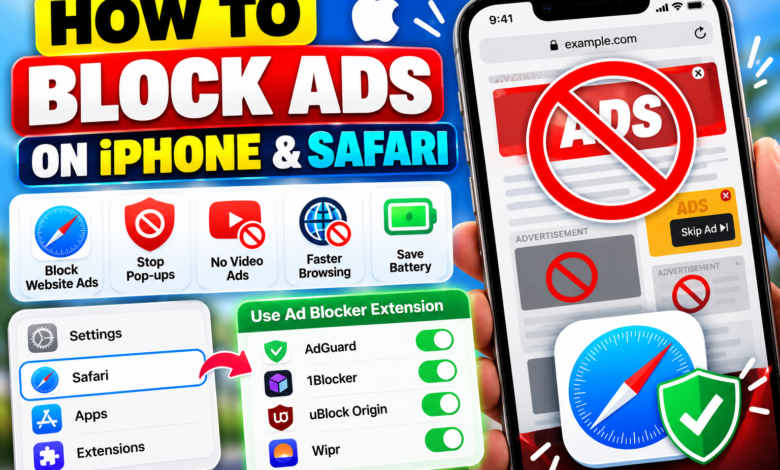
If you are looking for a complete and easy guide on
How to Block Ads on iPhone
and Safari, you have come to the right place! Annoying pop-up ads, auto-playing video advertisements, and intrusive banners not only ruin your browsing experience but also drain your mobile data and slow down webpage loading speeds.
Fortunately, iOS provides built-in privacy tools and supports trusted free content blockers that let you stop advertisements across Safari and games in just a few taps.
In this step-by-step guide, we will show you How to Block Ads on iPhone using simple built-in settings and free Safari extensions.
Quick Comparison: Best Ways to Stop iPhone Ads
Here is a quick overview of the most effective ways to enjoy an ad-free experience on your Apple device:
| Method | Type of Ads Blocked | Difficulty |
|---|---|---|
| Safari Content Blockers | Safari web banners, pop-ups, video ads | Super Easy (App extension) |
| iOS Built-in Pop-Up Blockers | New window redirects, fraudulent pop-ups | 1-Click Settings toggle |
| Private DNS (AdGuard DNS) | In-app ads and mobile game banners | Easy (Wi-Fi/Network Profile) |
Step 1: Turn On Safari Built-In Pop-Up Blocker
Apple has built-in features in iOS Settings to block unwanted pop-ups and fraudulent website warnings:
- Open the Settings app on your iPhone.
- Scroll down and tap on Safari.
- Under the General section, toggle ON Block Pop-ups.
- Under the Privacy & Security section, toggle ON Fraudulent Website Warning.
Step 2: Install a Free Safari Ad Blocker Extension
To block banner ads and auto-playing videos while browsing websites, installing a free Content Blocker extension from the App Store is the best solution.
- Download a trusted free ad blocker like AdGuard for Safari or 1Blocker from the App Store.
- Go to Settings > Safari > Extensions on your iPhone.
- Tap on your installed ad blocker and toggle all content blocking rules to ON.
- Open Safari—webpages will now load faster without any distracting ads!
Step 3: Block Ads in Mobile Games Using Private DNS
If you want to stop video ads inside free mobile games and apps without downloading extra software, you can configure a free Encrypted DNS profile:
How to Setup Free Ad-Blocking DNS:
- Go to Settings > Wi-Fi and tap the (i) Info icon next to your connected network.
- Select Configure DNS and change it from Automatic to Manual.
- Remove existing servers and add dns.adguard.com or download the official free AdGuard DNS profile.
Frequently Asked Questions
Is blocking ads on iPhone safe?
Yes! Using official Safari content blocker extensions approved by Apple is completely safe and actually improves your online security by blocking malicious scripts and tracking cookies.
Does blocking ads make Safari load faster?
Absolutely. Because ad blockers prevent heavy media files, third-party tracking scripts, and video ads from loading, webpages often load up to 2-3 times faster.
Now that you know How to Block Ads on iPhone, you can enjoy a clean, fast, and secure browsing experience on your phone. What ad blocker app do you prefer using? Let us know in the comments below!
About The Author