
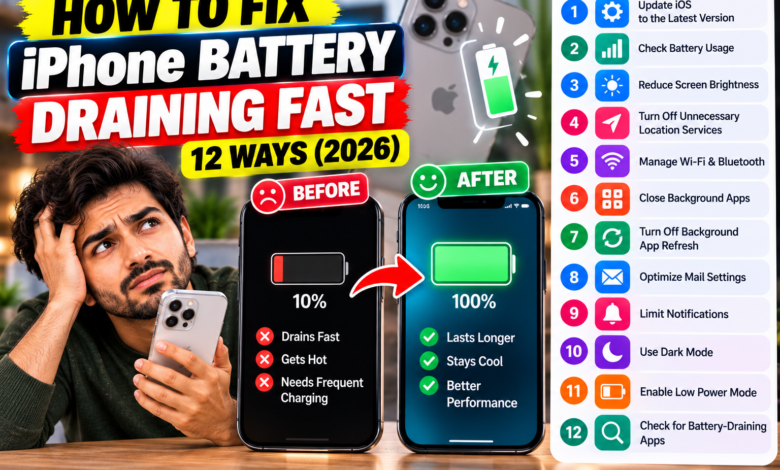
If you are struggling with your battery dropping rapidly throughout the day and want to know
How to Fix iPhone Battery Draining Fast
you are in the right place! Dealing with an iPhone battery that drains quickly—even when you are barely using your device—is one of the most frustrating problems for Apple users after installing new iOS updates or running heavy background applications.
Fortunately, you don’t always need to spend money on an expensive battery replacement or rush to an Apple Store. In most cases, rapid battery drain is caused by misconfigured system settings, runaway background app refreshes, location tracking services, and display drain.
In this ultimate in-depth guide, we will walk you through 12 proven, step-by-step solutions on How to Fix iPhone Battery Draining Fast and dramatically boost your daily battery endurance.
Quick Diagnostics: Why Is Your iPhone Battery Draining Quickly?
Before jumping into the fixes, it helps to identify the exact cause behind your battery consumption. iOS includes a built-in diagnostic tool that pinpoints battery-hungry applications.
| Battery Drain Cause | Common Symptoms | Primary Solution |
|---|---|---|
| Background Refresh | Battery drains overnight or while the screen is off. | Turn off Background App Refresh for social apps. |
| Location Tracking | Device feels warm; GPS icon stays active in status bar. | Set Location Services to “While Using the App”. |
| High Screen Brightness | Display/Home Screen shows 40%+ battery usage in settings. | Enable Auto-Brightness and Dark Mode. |
| Degraded Battery Health | Maximum Capacity score drops below 80%. | Hardware battery replacement needed. |
Step 1: Check Battery Health and Usage Stats
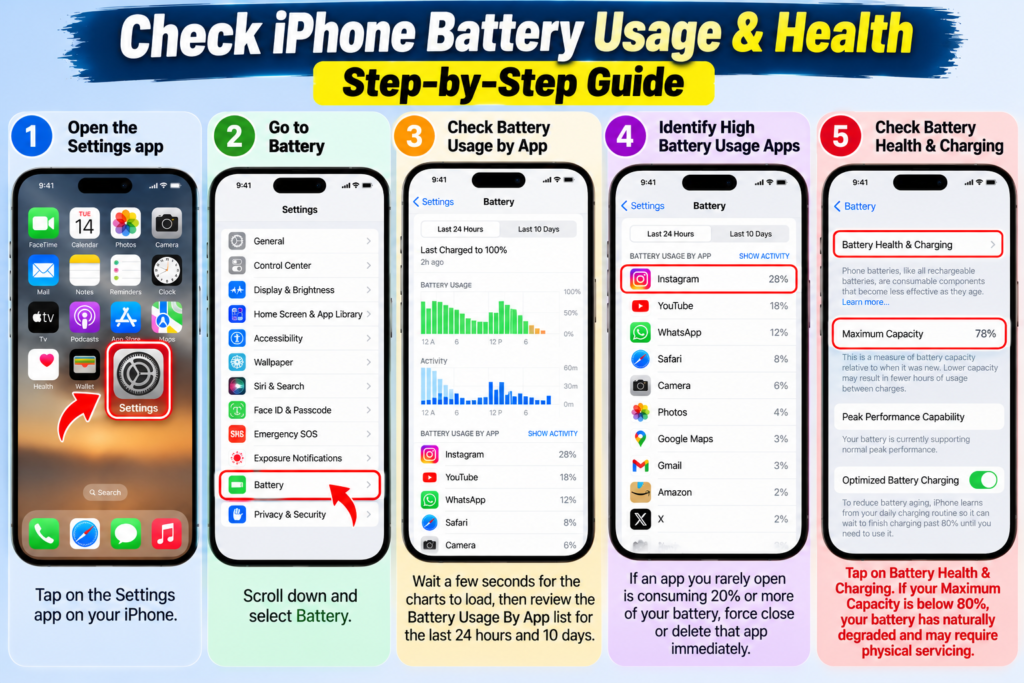
The first step in troubleshooting is finding out which specific apps consume the most power:
- Open the Settings app on your iPhone.
- Scroll down and select Battery.
- Wait a few seconds for the battery charts to load, then review the Battery Usage By App list for the last 24 hours and 10 days.
- If an app you rarely open is consuming 20% or more of your battery, force close or delete that app immediately.
- Tap on Battery Health & Charging. If your Maximum Capacity is below 80%, your battery has naturally degraded and may require physical servicing.
Step 2: Disable Background App Refresh
Background App Refresh allows apps like Facebook, Instagram, and Mail to fetch new content and updates even when you aren’t using them. This is one of the single biggest causes of hidden battery drain.
- Go to Settings > General > Background App Refresh.
- You can choose to turn it completely Off, or set it to Wi-Fi Only.
- Alternatively, toggle OFF the individual switches for heavy apps like TikTok, Snapchat, and news feeds while leaving messaging apps like WhatsApp enabled.
Step 3: Optimize Location Services
GPS hardware consumes massive amounts of power. Many apps track your continuous location in the background without any real necessity.
- Go to Settings > Privacy & Security > Location Services.
- Review the list of apps and change their access permission from Always to While Using the App or Never.
- Scroll to the bottom, tap System Services, and turn OFF non-essential features like iPhone Analytics, Significant Locations, and Location-Based Alerts.
Step 4: Enable Dark Mode for OLED Screens
Modern iPhones (iPhone X and newer, excluding SE models) feature OLED screens. On OLED displays, black pixels are physically turned off, consuming zero power.
- Go to Settings > Display & Brightness and select Dark.
- Toggle ON Automatic so your iPhone switches to Dark Mode at sunset automatically.
- Use dark wallpapers on your lock screen and home screen for additional power savings.
Step 5: Turn Off Push Email Fetching
If your Mail app is set to “Push”, your iPhone maintains a constant active connection to email servers 24/7 to fetch new emails the millisecond they arrive.
- Go to Settings > Mail > Accounts > Fetch New Data.
- Toggle OFF Push at the top.
- Set the schedule at the bottom to Every 30 Minutes or Hourly to save significant processing power.
Step 6: Adjust Screen Brightness and Auto-Lock
A bright screen running continuously is a primary driver of rapid battery depletion:
- Turn on Auto-Brightness by going to Settings > Accessibility > Display & Text Size, scrolling to the bottom, and toggling Auto-Brightness to ON.
- Go to Settings > Display & Brightness > Auto-Lock and change the timer to 30 Seconds or 1 Minute so your screen turns off when not in use.
Step 7: Disable Motion & System Animations
Parallax visual effects, dynamic wallpapers, and smooth window transitions use extra GPU power that drains juice unnecessarily.
- Go to Settings > Accessibility > Motion.
- Toggle ON Reduce Motion to simplify home screen transition animations.
Advanced Tips to Extend Daily Battery Life
Pro Power-Saving Habits:
- Use Low Power Mode: Enable Low Power Mode in Settings > Battery when your charge drops below 20%. It automatically restricts background sync and lowers screen refresh rates.
- Disable “Hey Siri” Voice Activation: If you don’t use hands-free voice commands, go to Settings > Siri & Search and turn off Listen for “Hey Siri” to stop the microphone hardware from listening continuously.
- Keep iOS Updated: Apple frequently releases software patches that repair background memory leaks and power management bugs. Always keep your phone updated under Settings > General > Software Update.
FAQ’s
Is it normal for iPhone battery to drain fast after a software update?
Yes! During the first 24 to 48 hours after a major iOS update, your iPhone runs heavy background indexing for photos, search files, and app databases. Battery life usually stabilizes back to normal after two days.
Does force closing apps save battery on iPhone?
No! Force closing apps from the App Switcher actually consumes more battery. When you reopen a closed app, iOS has to reload it entirely into RAM from scratch. Leave frequently used apps paused in suspended memory.
At what battery health percentage should you replace an iPhone battery?
Apple officially recommends replacing your battery when its Maximum Capacity drops below 80%, or when you see a “Service” warning in the Battery Health menu.
Now that you know How to Fix iPhone Battery Draining Fast, you can apply these setting tweaks today and enjoy significantly better battery backup throughout your day! Which setting saved you the most battery? Let us know in the comments below!
More Guides…
How to Clear Cache on iPhone (Speed Up Safari & Apps)
How to Block Ads on iPhone & Safari (Free & Easy Method)
About The Author





One Comment