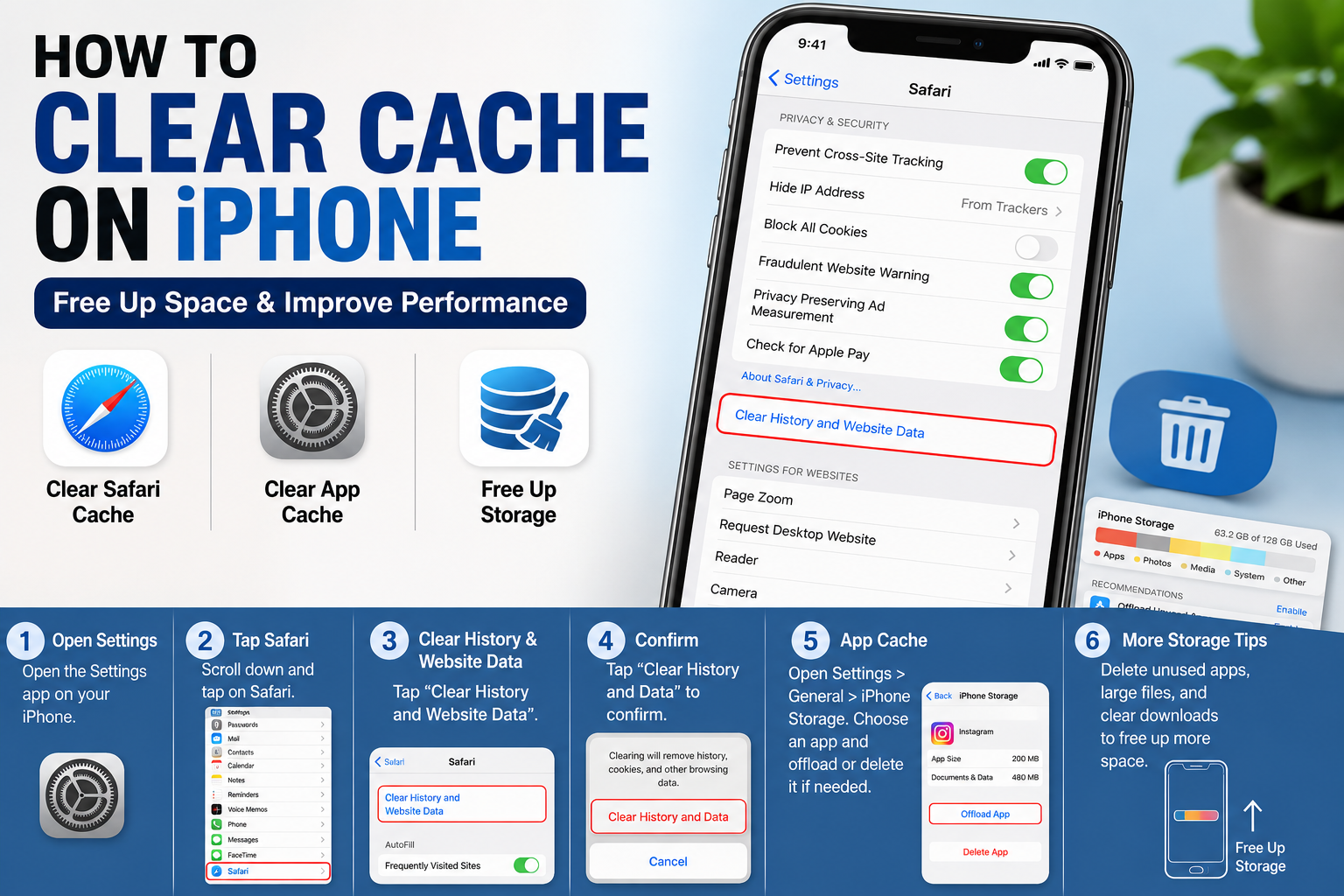
How to Clear Cache on iPhone: Safari, Apps, and Storage Guide
If your iPhone feels slower than usual, Safari isn’t loading websites properly, or you’re running out of storage, you may be wondering how to clear cache on iPhone.
Clearing cached data can help troubleshoot certain browser and app problems. It can also remove temporary website data and, in some situations, free up storage.
However, iPhone doesn’t have one universal button that clears every app’s cache. The process depends on whether you want to clear Safari cache on iPhone, remove website data, or manage storage used by individual apps.
In this guide, you’ll learn how to delete cache on iPhone, how to clear Safari data, how to manage app storage, and what happens when you clear cached data.
What Is Cache on an iPhone?
Cache is temporary information stored by websites and apps to make frequently used content load faster.
For example, Safari can store website data, images, cookies, and other temporary files. Apps may also store temporary files or downloaded content.
Cache isn’t necessarily bad. In fact, it can make apps and websites faster. You usually don’t need to clear it regularly unless you’re troubleshooting a problem or trying to recover storage.
How to Clear Safari Cache on iPhone
If you’re looking for the easiest way to clear Safari cache on iPhone, Apple’s built-in Safari settings provide the simplest option.
Step 1: Open Settings
Open the Settings app on your iPhone.
Step 2: Tap Safari
Scroll through Settings and select Safari.
Depending on your iOS version, some settings may appear in slightly different locations.
Step 3: Clear History and Website Data
Look for Clear History and Website Data.
Tap the option and review the information displayed by your iPhone.
Step 4: Confirm
Follow the on-screen instructions to confirm.
After clearing Safari data, some websites may require you to sign in again.
That’s the basic process for clearing Safari’s stored browsing data on an iPhone.
How to Clear Website Data on iPhone Without Clearing History
Sometimes you don’t want to remove your entire browsing history. You may only want to clear website data on iPhone for a particular website.
You can manage stored website information through Safari’s advanced settings.
Go to:
Settings → Safari → Advanced → Website Data
Here, you can review stored website data and remove individual website entries when available.
This can be useful if one website isn’t loading correctly, repeatedly shows an error, or behaves differently than expected.
How to Clear App Cache on iPhone
If you’re trying to learn how to clear app cache on iPhone, there’s an important difference between iOS and some other smartphone platforms.
iPhone doesn’t provide a universal Clear Cache button for every installed app.
Some apps have their own cache or storage-management option inside their settings. Check the app’s settings for options such as:
- Clear cache
- Clear temporary files
- Clear downloads
- Clear storage
- Reset app data
If an app doesn’t provide a cache-clearing option, you can use iPhone Storage to determine how much space it occupies.
How to Free Up Storage on iPhone
If your main goal is to free up storage on iPhone, clearing Safari cache may not make a significant difference.
Instead, check which apps and files are consuming the most space.
Go to:
Settings → General → iPhone Storage
Your iPhone will display a breakdown of storage usage and may provide recommendations for freeing up space.
You can then review large apps, photos, videos, downloads, and other files.
How to Offload an App on iPhone
Offloading an app can be useful when an app takes up considerable storage but you don’t want to permanently remove its associated documents and data.
Step 1: Open Settings
Go to Settings.
Step 2: Tap General
Select General → iPhone Storage.
Step 3: Select an App
Choose the app you want to manage.
Your iPhone will show information about how much storage the app is using.
Step 4: Tap Offload App
Select Offload App and follow the confirmation instructions.
Offloading removes the app itself while retaining its documents and data so you can reinstall it later.
How to Delete an App and Its Data
If an app is malfunctioning and doesn’t offer its own cache-clearing option, deleting and reinstalling it can sometimes resolve the problem.
Go to:
Settings → General → iPhone Storage → [App Name]
Review the available options before deleting the app.
You can then download the app again from the App Store.
Important
Deleting an app may remove data stored locally by that app.
Before doing this, make sure important information is synced to your account or backed up.
Don’t delete an app simply to clear cache if it contains files you haven’t backed up.
Does Clearing Cache Delete Photos on iPhone?
Generally, clearing Safari’s browsing data does not delete photos stored in your iPhone’s Photos app.
However, deleting an individual app can remove information stored locally by that app.
If you’re trying to free up storage on iPhone, check your storage settings first instead of deleting apps or files at random.
Go to:
Settings → General → iPhone Storage
This gives you a better idea of what’s actually using your storage.
Does Clearing Cache Delete Everything on iPhone?
No.
Clearing Safari’s cache or website data is not the same thing as erasing your iPhone.
Your personal photos, videos, contacts, and other files aren’t normally deleted simply because you clear Safari browsing data.
However, clearing website data can sign you out of websites, and deleting an app can remove locally stored app information.
Always read the confirmation message before deleting or removing data.
How to Clear Cache on iPhone Without Deleting Apps
If you don’t want to delete apps, start with Safari.
You can:
- Clear Safari browsing data.
- Remove unnecessary website data.
- Check iPhone Storage.
- Offload apps you rarely use.
- Delete unnecessary downloads.
- Remove large files you no longer need.
This approach can help you manage storage without immediately deleting your installed apps.
How to Free Up More iPhone Storage
If you’re searching for an iPhone cache cleaner, be careful with third-party apps that claim they can magically clean every type of iPhone cache.
You can often manage unnecessary data using Apple’s built-in tools.
Remove Unused Apps
Review Settings → General → iPhone Storage and remove apps you no longer need.
Review Large Videos
Videos can take up significant storage. Look for large or unwanted videos and delete them after confirming you have a backup if necessary.
Remove Unnecessary Downloads
Downloaded movies, music, podcasts, documents, and offline files can consume a surprising amount of space.
Review Messages Attachments
Large photos and videos sent through Messages can contribute to your storage usage.
Check Photos Storage
If photos and videos are using most of your storage, review your photo-management settings and make sure important content is safely backed up before deleting anything.
Should You Clear Cache on iPhone Regularly?
Usually, no.
You don’t need to clear cache on a fixed schedule just because you’ve been using your iPhone for a certain amount of time.
Consider clearing cached browsing data when:
- Safari isn’t loading a website correctly.
- A website behaves unexpectedly.
- You want to remove stored website data.
- An app is experiencing a specific problem.
- You’re troubleshooting storage issues.
iOS already manages many temporary files automatically, so routine cache clearing isn’t necessary for most people.
What to Do If Your iPhone Is Still Slow
Clearing cache isn’t a guaranteed solution for every performance problem.
If your iPhone remains slow after clearing unnecessary data, try these steps:
- Restart your iPhone.
- Check available storage.
- Install available iOS updates.
- Update your apps.
- Remove apps you no longer use.
- Check whether one particular app is causing the problem.
If only one app is slow or repeatedly crashes, troubleshooting that specific app may be more effective than clearing cache across your entire device.
How do I clear cache on iPhone?
To clear Safari cache, open Settings → Safari and use the available option to clear browsing history and website data. For individual apps, check whether the app provides its own cache-clearing option.
How do I clear app cache on iPhone?
There isn’t a universal cache button for every iPhone app. Check the individual app’s settings first. If no cache option exists, you can review the app under Settings → General → iPhone Storage and consider offloading or deleting it.
How do I delete cache on iPhone without deleting everything?
You can clear Safari’s browsing data or manage individual website data without erasing your entire iPhone. For apps, use their built-in storage options when available.
Does clearing cache make an iPhone faster?
It can help resolve certain browser or app problems, but clearing cache isn’t guaranteed to make an iPhone faster. Available storage, software updates, and individual app performance can also affect speed.
Does clearing Safari cache delete my photos?
No. Clearing Safari’s browsing data does not normally delete photos stored in the Photos app.
How often should I clear cache on iPhone?
There is no recommended schedule for routinely clearing cache. Do it when you’re troubleshooting a website or app, managing stored website data, or trying to solve a specific storage issue.
How can I check what’s taking up storage on my iPhone?
Open Settings → General → iPhone Storage. Your iPhone will show how much storage is being used and which apps and categories are taking up the most space.
Knowing how to clear cache on iPhone can be useful when Safari isn’t working properly, an app is behaving strangely, or you’re trying to manage storage.
For browser data, start with Safari’s built-in settings. For individual apps, check whether the app offers its own cache-management feature or review its storage usage through iPhone Storage.
If your goal is to free up storage on iPhone, don’t assume cache is the main problem. Check your storage breakdown first and focus on large apps, videos, downloads, and other unnecessary files.
And if you’re trying to delete cache on iPhone, always check what the selected option will remove before confirming.
Read Also :
How to Scan a Document on iPhone: 3 Easy Ways
About The Author